ComplyNestly Introduces Renewal Autopilot to Turn Expiring Credentials Into Actionable Work
Required credentials that are missing, expiring, or expired now become a real renewal task — with an optional employee portal link and manager review — instead of just a warning someone has to act on.
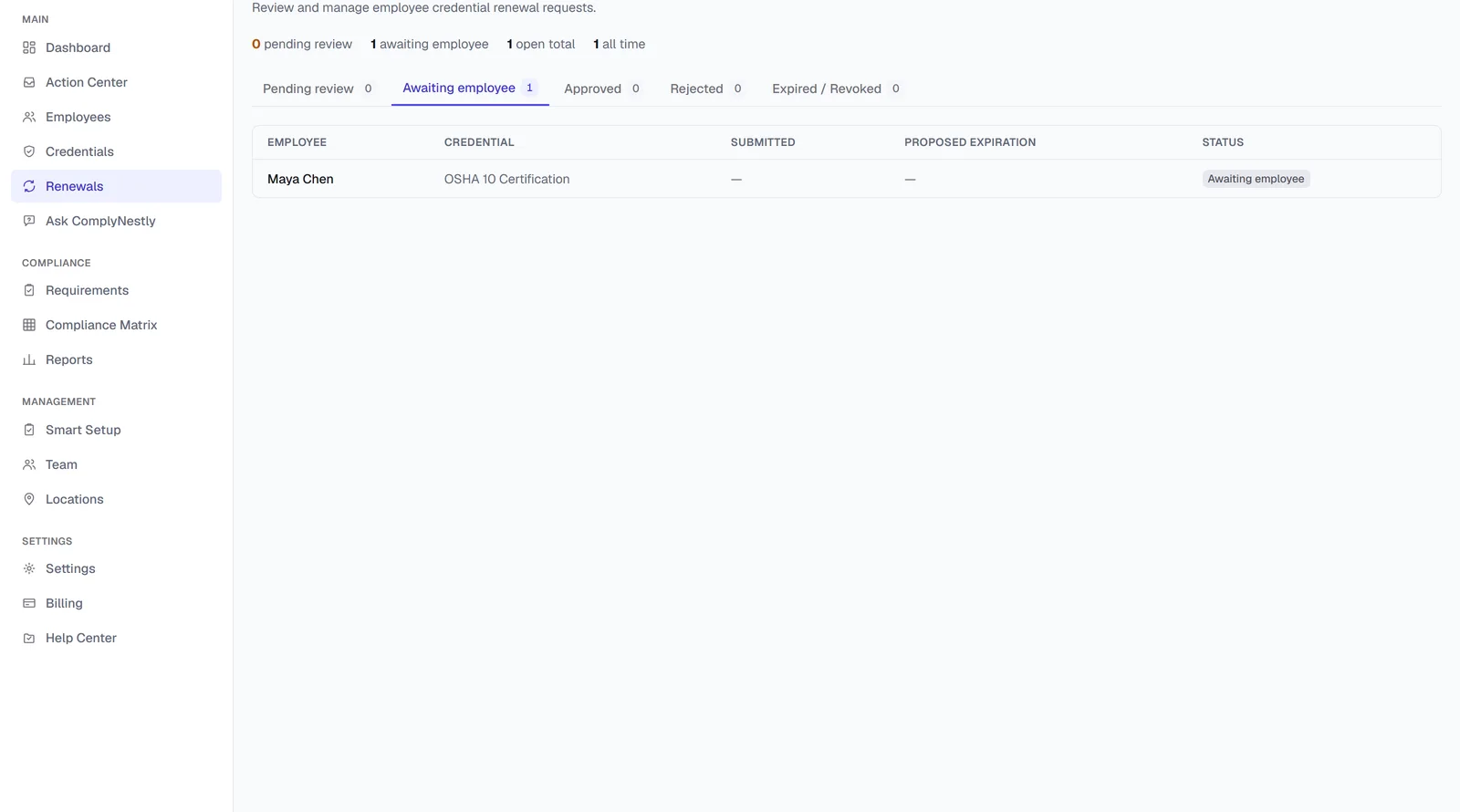
Renewal Autopilot opens a task the moment a required credential is missing, expiring, or expired.
What's new
- Renewal Autopilot only acts on required credentials — ones tied to a role requirement — never on optional ones
- It creates tasks and, optionally, sends employee portal links; it never approves a credential on its own
- Managers review and approve or reject every submission — Autopilot cannot skip that step
- Turning Autopilot off stops new tasks from being created; existing in-flight requests stay open so they can be finished
ComplyNestly today introduced Renewal Autopilot, a paid feature that turns a missing, expiring, or expired required credential directly into a renewal task — rather than leaving that step to whoever happens to notice the warning.
Expiration tracking answers "when does this expire?" Reminders answer "has someone been told?" Neither one actually opens the renewal, reaches the employee, collects the updated document, or gets it in front of a manager for approval — that handoff has traditionally stayed manual, and manual handoffs are exactly where required credentials slip through.
Renewal Autopilot closes that gap. When a required credential becomes missing, expiring, or expired, ComplyNestly opens a renewal task automatically and, if enabled, emails the employee a secure portal link to submit their updated credential — with every submission still requiring manager review before it's approved.
The gap between knowing and doing
Most credential tracking tools, ComplyNestly included, will tell you a certification expires in three weeks. That's useful, but it's not the same as the certification actually getting renewed. Someone still has to notice the warning, figure out whose credential it is, reach that employee, ask for the updated document, wait for it, and then confirm the record is current.
For one credential, that's a five-minute task. For a growing company tracking dozens of role-required credentials across a team, it becomes a recurring, easy-to-drop responsibility — especially when the person who's supposed to "just remember to check" is also running the business.
How the workflow actually runs
- 1A required credential becomes missing, expiring, or expired
Autopilot watches only credentials tied to a role requirement — a state license a job title needs, for example — not every credential in the system.
- 2ComplyNestly opens a renewal task
The task appears in Renewals and in the Action Center, so it's visible whether or not the employee has been contacted yet.
- 3An employee portal link is optionally sent
If automatic employee email is enabled, the employee receives a secure link to a self-service page where they can submit their renewed credential — no full account login required for this step.
- 4The employee submits their document
The employee uploads their updated certificate. AI credential extraction can pre-fill the expiration date and other fields from the document, but the employee still confirms what's submitted.
- 5A manager reviews and decides
The submission appears for manager review. Autopilot never approves a credential itself — a manager approves, rejects with a reason, or asks for a correction.
- 6The record updates once approved
Only after manager approval does the employee's credential record reflect the renewal, and the requirement clears.
A realistic scenario
Consider a 60-person facilities maintenance company where HVAC technicians are required to hold an EPA Section 608 certification. One technician's certification is 25 days from expiring. Without Autopilot, that fact sits on a dashboard until someone checks it.
With Autopilot enabled, ComplyNestly opens a renewal task the moment the credential crosses the expiring-soon threshold and emails the technician a portal link. The technician photographs their renewed card and uploads it from their phone. Their manager gets a notification, reviews the submission against the requirement, and approves it — the whole cycle handled without anyone in the office having to chase the technician down or manually update a spreadsheet.
What Autopilot does not do
Renewal Autopilot is intentionally scoped:
- It never approves or edits a credential record on its own — every submission requires manager review
- It only opens tasks for credentials covered by a role requirement, never for optional ones
- Turning it off stops new tasks from being created going forward; requests already in progress remain open so managers can finish them rather than losing visibility into work underway
- It doesn't determine what a role legally requires — that configuration is set by the business
Turning it on for the first time
Renewal Autopilot depends on role requirements already being configured — it watches required credentials specifically, so a company turning it on for the first time should confirm role templates are accurate before enabling it, rather than after. Autopilot doesn't retroactively act on credentials that were already expired before it was turned on if requirements weren't set up yet to flag them; it starts watching from whatever state the requirements are in at the moment it's enabled.
Automatic employee email is a separate setting from Autopilot itself, so a company can start with Autopilot creating tasks internally — visible to managers in Renewals and the Action Center — before turning on employee emails once they're comfortable with how the tasks look in practice.
Frequently asked questions
Does Renewal Autopilot automatically approve renewed credentials?
No. Autopilot creates renewal tasks and can email an employee portal link, but a manager must always review and approve a submission before the credential record updates.
What happens if I turn Renewal Autopilot off?
ComplyNestly stops opening new renewal tasks. Any renewal request already in progress remains open so you can finish reviewing it — turning Autopilot off doesn't cancel existing work.
Does Autopilot work on credentials that aren't tied to a role requirement?
No. Only required credentials — ones assigned through a role or an individual requirement — are eligible. Optional credentials stay tracked, but Autopilot won't open tasks for them.
Do employees need a full ComplyNestly account to submit a renewal?
No. When automatic email is enabled, employees get a secure portal link for submitting that specific renewal, without needing full platform access.
Keep exploring
Stop manually chasing every renewal
Renewal Autopilot is available today on Pro and Business plans.